Computer: Definition
A computer is a machine that can be programmed to manipulate symbols. Its principal characteristics are:
- It responds to a specific set of instructions in a well-defined manner.
- It can execute a prerecorded list of instructions (a program).
- It can quickly store and retrieve large amounts of data.
Therefore computers can perform complex and
repetitive procedures quickly, precisely and reliably. Modern computers
are electronic and digital. The actual machinery (wires, transistors,
and circuits) is called hardware; the instructions and data are called
software. All general-purpose computers require the following hardware
components:
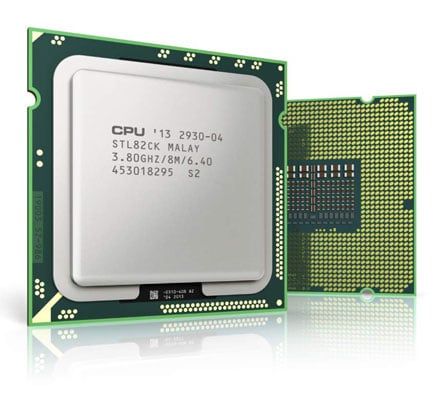
- Central processing unit (CPU): The
heart of the computer, this is the component that actually executes
instructions organized in programs ("software") which tell the computer
what to do.
- Memory (fast, expensive, short-term
memory): Enables a computer to store, at least temporarily, data,
programs, and intermediate results.
- Mass storage device (slower, cheaper,
long-term memory): Allows a computer to permanently retain large
amounts of data and programs between jobs. Common mass storage devices
include disk drives and tape drives.
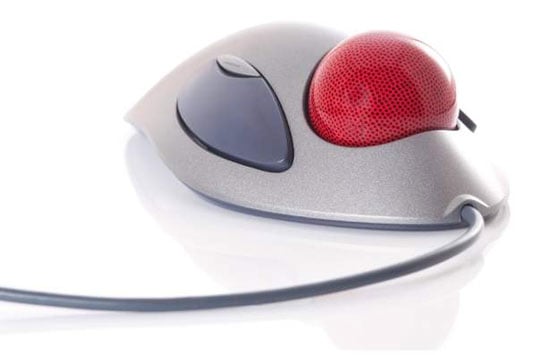
- Input device: Usually a keyboard and
mouse, the input device is the conduit through which data and
instructions enter a computer.
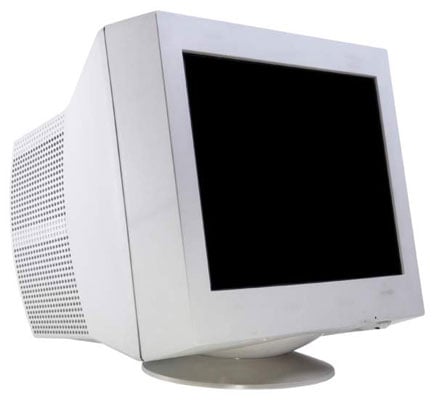
- Output device: A display screen, printer, or other device that lets you see what the computer has accomplished.
In addition to these components, many others
make it possible for the basic components to work together efficiently.
For example, every computer requires a bus that transmits data from one
part of the computer to another.
II, Computer sizes and power
Computers can be generally classified by size and power as follows, though there is considerable overlap:
- Personal computer: A small, single-user computer based on a microprocessor.
- Workstation: A powerful, single-user
computer. A workstation is like a personal computer, but it has a more
powerful microprocessor and, in general, a higher-quality monitor.
- Minicomputer: A multi-user computer capable of supporting up to hundreds of users simultaneously.
- Mainframe: A powerful multi-user computer capable of supporting many hundreds or thousands of users simultaneously.
- Supercomputer: An extremely fast computer that can perform hundreds of millions of instructions per second.
Supercomputer and Mainframe
Supercomputer is a broad term for one of the
fastest computers currently available. Supercomputers are very expensive
and are employed for specialized applications that require immense
amounts of mathematical calculations (number crunching). For example,
weather forecasting requires a supercomputer. Other uses of
supercomputers scientific simulations, (animated) graphics, fluid
dynamic calculations, nuclear energy research, electronic design, and
analysis of geological data (e.g. in petrochemical prospecting). Perhaps
the best known supercomputer manufacturer is Cray Research.
Mainframe was a term originally referring to
the cabinet containing the central processor unit or "main frame" of a
room-filling Stone Age batch machine. After the emergence of smaller
"minicomputer" designs in the early 1970s, the traditional big iron
machines were described as "mainframe computers" and eventually just as
mainframes. Nowadays a Mainframe is a very large and expensive computer
capable of supporting hundreds, or even thousands, of users
simultaneously. The chief difference between a supercomputer and a
mainframe is that a supercomputer channels all its power into executing a
few programs as fast as possible, whereas a mainframe uses its power to
execute many programs concurrently. In some ways, mainframes are more
powerful than supercomputers because they support more simultaneous
programs. But supercomputers can execute a single program faster than a
mainframe. The distinction between small mainframes and minicomputers is
vague, depending really on how the manufacturer wants to market its
machines.
Minicomputer
It is a midsize computer. In the past
decade, the distinction between large minicomputers and small mainframes
has blurred, however, as has the distinction between small
minicomputers and workstations. But in general, a minicomputer is a
multiprocessing system capable of supporting from up to 200 users
simultaneously.
Workstation
It is a type of computer used for
engineering applications (CAD/CAM), desktop publishing, software
development, and other types of applications that require a moderate
amount of computing power and relatively high quality graphics
capabilities. Workstations generally come with a large, high-resolution
graphics screen, at large amount of RAM, built-in network support, and a
graphical user interface. Most workstations also have a mass storage
device such as a disk drive, but a special type of workstation, called a
diskless workstation, comes without a disk drive. The most common
operating systems for workstations are UNIX and Windows NT. Like
personal computers, most workstations are single-user computers.
However, workstations are typically linked together to form a local-area
network, although they can also be used as stand-alone systems.
N.B.: In networking, workstation refers to
any computer connected to a local-area network. It could be a
workstation or a personal computer.
Personal computer:
It can be defined as a small, relatively
inexpensive computer designed for an individual user. In price, personal
computers range anywhere from a few hundred pounds to over five
thousand pounds. All are based on the microprocessor technology that
enables manufacturers to put an entire CPU on one chip. Businesses use
personal computers for word processing, accounting, desktop publishing,
and for running spreadsheet and database management applications. At
home, the most popular use for personal computers is for playing games
and recently for surfing the Internet.
Personal computers first appeared in the late
1970s. One of the first and most popular personal computers was the
Apple II, introduced in 1977 by Apple Computer. During the late 1970s
and early 1980s, new models and competing operating systems seemed to
appear daily. Then, in 1981, IBM entered the fray with its first
personal computer, known as the IBM PC. The IBM PC quickly became the
personal computer of choice, and most other personal computer
manufacturers fell by the wayside. P.C. is short for personal computer
or IBM PC. One of the few companies to survive IBM's onslaught was Apple
Computer, which remains a major player in the personal computer
marketplace. Other companies adjusted to IBM's dominance by building IBM
clones, computers that were internally almost the same as the IBM PC,
but that cost less. Because IBM clones used the same microprocessors as
IBM PCs, they were capable of running the same software. Over the years,
IBM has lost much of its influence in directing the evolution of PCs.
Therefore after the release of the first PC by IBM the term PC
increasingly came to mean IBM or IBM-compatible personal computers, to
the exclusion of other types of personal computers, such as Macintoshes.
In recent years, the term PC has become more and more difficult to pin
down. In general, though, it applies to any personal computer based on
an Intel microprocessor, or on an Intel-compatible microprocessor. For
nearly every other component, including the operating system, there are
several options, all of which fall under the rubric of PC
Today, the world of personal computers is
basically divided between Apple Macintoshes and PCs. The principal
characteristics of personal computers are that they are single-user
systems and are based on microprocessors. However, although personal
computers are designed as single-user systems, it is common to link them
together to form a network. In terms of power, there is great variety.
At the high end, the distinction between personal computers and
workstations has faded. High-end models of the Macintosh and PC offer
the same computing power and graphics capability as low-end workstations
by Sun Microsystems, Hewlett-Packard, and DEC.
III, Personal Computer Types
Actual personal computers can be
generally classified by size and chassis / case. The chassis or case is
the metal frame that serves as the structural support for electronic
components. Every computer system requires at least one chassis to house
the circuit boards and wiring. The chassis also contains slots for
expansion boards. If you want to insert more boards than there are
slots, you will need an expansion chassis, which provides additional
slots. There are two basic flavors of chassis designs–desktop models and
tower models–but there are many variations on these two basic types.
Then come the portable computers that are computers small enough to
carry. Portable computers include notebook and subnotebook computers,
hand-held computers, palmtops, and PDAs.
Tower model
The term refers to a computer in which
the power supply, motherboard, and mass storage devices are stacked on
top of each other in a cabinet. This is in contrast to desktop models,
in which these components are housed in a more compact box. The main
advantage of tower models is that there are fewer space constraints,
which makes installation of additional storage devices easier.
Desktop model
A computer designed to fit comfortably on
top of a desk, typically with the monitor sitting on top of the
computer. Desktop model computers are broad and low, whereas tower model
computers are narrow and tall. Because of their shape, desktop model
computers are generally limited to three internal mass storage devices.
Desktop models designed to be very small are sometimes referred to as slimline models.
Notebook computer
An extremely lightweight personal
computer. Notebook computers typically weigh less than 6 pounds and are
small enough to fit easily in a briefcase. Aside from size, the
principal difference between a notebook computer and a personal computer
is the display screen. Notebook computers use a variety of techniques,
known as flat-panel technologies, to produce a lightweight and non-bulky
display screen. The quality of notebook display screens varies
considerably. In terms of computing power, modern notebook computers are
nearly equivalent to personal computers. They have the same CPUs,
memory capacity, and disk drives. However, all this power in a small
package is expensive. Notebook computers cost about twice as much as
equivalent regular-sized computers. Notebook computers come with battery
packs that enable you to run them without plugging them in. However,
the batteries need to be recharged every few hours.
Laptop computer
A small, portable computer -- small enough
that it can sit on your lap. Nowadays, laptop computers are more
frequently called notebook computers.
Subnotebook computer
A portable computer that is slightly
lighter and smaller than a full-sized notebook computer. Typically,
subnotebook computers have a smaller keyboard and screen, but are
otherwise equivalent to notebook computers.
Hand-held computer
A portable computer that is small enough
to be held in one’s hand. Although extremely convenient to carry,
handheld computers have not replaced notebook computers because of their
small keyboards and screens. The most popular hand-held computers are
those that are specifically designed to provide PIM (personal
information manager) functions, such as a calendar and address book.
Some manufacturers are trying to solve the small keyboard problem by
replacing the keyboard with an electronic pen. However, these pen-based
devices rely on handwriting recognition technologies, which are still in
their infancy. Hand-held computers are also called PDAs, palmtops and
pocket computers.
Palmtop
A small computer that literally fits in
your palm. Compared to full-size computers, palmtops are severely
limited, but they are practical for certain functions such as phone
books and calendars. Palmtops that use a pen rather than a keyboard for
input are often called hand-held computers or PDAs. Because of their
small size, most palmtop computers do not include disk drives. However,
many contain PCMCIA slots in which you can insert disk drives, modems,
memory, and other devices. Palmtops are also called PDAs, hand-held
computers and pocket computers.
PDA
Short for personal digital assistant, a
handheld device that combines computing, telephone/fax, and networking
features. A typical PDA can function as a cellular phone, fax sender,
and personal organizer. Unlike portable computers, most PDAs are
pen-based, using a stylus rather than a keyboard for input. This means
that they also incorporate handwriting recognition features. Some PDAs
can also react to voice input by using voice recognition technologies.
The field of PDA was pioneered by Apple Computer, which introduced the
Newton MessagePad in 1993. Shortly thereafter, several other
manufacturers offered similar products. To date, PDAs have had only
modest success in the marketplace, due to their high price tags and
limited applications. However, many experts believe that PDAs will
eventually become common gadgets.
PDAs are also called palmtops, hand-held computers and pocket computers.
NOT: The main types of computer are supercomputers, mainframes, personal computers, laptops, netbooks, tablets and smartphones. Each have different purposes and capabilities.


 Symptoms
If you've just replaced your motherboard and failures occur, or if you've had your computer for a while and it suddenly misbehaves, you might automatically assume that the board is bad. Some of the symptoms to look for when diagnosing a bad motherboard are failure to boot. The computer may start to boot but then shuts down. Increased Windows errors or "blue screens of death" are symptoms of failing motherboards. The computer may freeze for seemingly no reason, or connected devices that worked before suddenly won’t work.
Symptoms
If you've just replaced your motherboard and failures occur, or if you've had your computer for a while and it suddenly misbehaves, you might automatically assume that the board is bad. Some of the symptoms to look for when diagnosing a bad motherboard are failure to boot. The computer may start to boot but then shuts down. Increased Windows errors or "blue screens of death" are symptoms of failing motherboards. The computer may freeze for seemingly no reason, or connected devices that worked before suddenly won’t work.
 Troubleshoot Crashes and Errors
Before you open your computer and mess with the hardware, try to remedy the problem on the soft side, by analyzing system and application settings. The following tasks assume that you can successfully boot into your operating system. If your system seems to work fine and then suddenly turns off, tap any key to see if it will come back to life. If it does, your computer could be set to go to sleep after a certain period of time. Open Control Panel and under Power Options check your settings and change them to something more convenient. Determine when your system problems began, such as whether you installed a new application recently. That application might not be compatible with one or more components of your computer. Uninstall the application and see if the problem persists. If it does, use Windows System Restore to restore to a point just before you installed the application. Malware and viruses can make it seem like the motherboard is failing. Perform a thorough virus scan of all drives and system files. If you recently downloaded any media files or shareware, do a system restore to a point before the download
Check Connections and Peripherals
Check if your power cord is loose, which would cause frequent shutdowns. Ill-fitted or loose peripheral connectors might also cause a problem, so tighten them up. An external hard drive, flash drive or bootable CD can prevent your computer from booting properly. Remove any CD or DVD from the optical drive, along with thumb drives that may be connected via USB. Disconnect external devices, including printers and scanners, and reboot the computer. If that solves the problem, you may need to adjust the boot order in your BIOS settings so the computer doesn't boot from these devices. Refer to your computer's operating manual or manufacturer's website for instructions on how to reset the BIOS.
Listen for Beeps
Troubleshoot Crashes and Errors
Before you open your computer and mess with the hardware, try to remedy the problem on the soft side, by analyzing system and application settings. The following tasks assume that you can successfully boot into your operating system. If your system seems to work fine and then suddenly turns off, tap any key to see if it will come back to life. If it does, your computer could be set to go to sleep after a certain period of time. Open Control Panel and under Power Options check your settings and change them to something more convenient. Determine when your system problems began, such as whether you installed a new application recently. That application might not be compatible with one or more components of your computer. Uninstall the application and see if the problem persists. If it does, use Windows System Restore to restore to a point just before you installed the application. Malware and viruses can make it seem like the motherboard is failing. Perform a thorough virus scan of all drives and system files. If you recently downloaded any media files or shareware, do a system restore to a point before the download
Check Connections and Peripherals
Check if your power cord is loose, which would cause frequent shutdowns. Ill-fitted or loose peripheral connectors might also cause a problem, so tighten them up. An external hard drive, flash drive or bootable CD can prevent your computer from booting properly. Remove any CD or DVD from the optical drive, along with thumb drives that may be connected via USB. Disconnect external devices, including printers and scanners, and reboot the computer. If that solves the problem, you may need to adjust the boot order in your BIOS settings so the computer doesn't boot from these devices. Refer to your computer's operating manual or manufacturer's website for instructions on how to reset the BIOS.
Listen for Beeps
 If you can't boot at all, listen to your computer when you turn it on. A pattern of beeps will tell you what the likely problem is. Motherboard failure is usually conveyed by one beep, followed by three, four or five. Four beeps, followed by two, three or four beeps indicate serial or parallel port issues, which also implies a damaged motherboard.
Check the Hardware
You may be more comfortable taking the computer to a technician when it comes time to check the hardware. If you're familiar with the inside of a computer, ground yourself first to avoid further damage. Check that all components are snugly in place. Look for obvious damage to the motherboard and its components. Check circuits and resisters for bubbles or burns. If you have any spare cards (video cards, memory, hard drives), change them out one at a time to see if it makes a difference.
Warnings
If you're unfamiliar with a computer's insides, don't attempt to fix it yourself. You could cause more damage than you started with. Before changing any system settings, write down the current settings so you can return them if the changes don't help. Check your computer's warranty. Many warranties become void once a computer is open.
If you can't boot at all, listen to your computer when you turn it on. A pattern of beeps will tell you what the likely problem is. Motherboard failure is usually conveyed by one beep, followed by three, four or five. Four beeps, followed by two, three or four beeps indicate serial or parallel port issues, which also implies a damaged motherboard.
Check the Hardware
You may be more comfortable taking the computer to a technician when it comes time to check the hardware. If you're familiar with the inside of a computer, ground yourself first to avoid further damage. Check that all components are snugly in place. Look for obvious damage to the motherboard and its components. Check circuits and resisters for bubbles or burns. If you have any spare cards (video cards, memory, hard drives), change them out one at a time to see if it makes a difference.
Warnings
If you're unfamiliar with a computer's insides, don't attempt to fix it yourself. You could cause more damage than you started with. Before changing any system settings, write down the current settings so you can return them if the changes don't help. Check your computer's warranty. Many warranties become void once a computer is open.